Olight makes the lights discussed here. Olight specs and prices come from its product pages and user manuals as of September 2026. Setup steps are counted from those manuals, and all other figures are calculated from published ratings.
⚡ TL;DR
An app controlled light is worth buying when one or two lamps need dimming, color or schedules without rewiring. Pick Bluetooth for a single room: no hub, and some lights need no account. Pick Wi-Fi only if you want voice control or control from outside the house. Either way, keep a physical button or wall switch so the light still works without a phone.
This table matches common app controlled light jobs to the type of light, the minimum spec to look for and an Olight option.
| Job | Recommended type | Minimum spec to look for | Olight option |
|---|---|---|---|
| Mood light for one room, no hub | Battery Bluetooth light with a button on the body | Direct phone control, a low mode near 1 lumen, setup without an account | Sphere Ambient Light, $17.99 |
| Lamp you want to control by voice or from work | Wi-Fi E26 bulb | 800 lumens, adjustable white, voice assistant support | Aurevo Smart Bulb, $9.99 |
| TV backlight, desk or shelf accent | Wi-Fi strip with buttons on the controller | Cut-to-length strip, segment control, onboard buttons | Ostrip 2, $45.99 |
| Low-cost strip for a kid's room | Phone-direct strip | 25-meter control range, preset scenes, USB power | Ostrip, $12.99 |
| Light during a power outage | Battery flashlight or lantern, not a plug-in smart light | Runs without mains power or a network | See the outage section below |
The annoyances this guide works through come down to three moments: a family member who can't find the switch, a router that drops and takes the light with it, and a power cut that leaves a "smart" lamp as dark as any other. This guide works through each one, then shows where app control genuinely earns its place.
📋 Table of Contents
- 1. Can I Control Lights With My Phone?
- 2. Bluetooth vs Wi-Fi: Does a Smart Light Work Without a Hub?
- 3. How Many Steps Does Setup Take?
- 4. What If Family Members Won't Use the App?
- 5. What Happens When the Wi-Fi or Power Goes Out?
- 6. Local Control vs Cloud Control: What Changes for Privacy?
- 7. Four Scenes Where an App Controlled Light Earns Its Keep
- 8. Olight App Controlled Lights and How Each One Connects
- 9. Is There an App That Can Control All Smart Lights?
- 10. Is There an App I Can Use to Control My LED Lights?
- 11. Where App Control Annoys, and What to Check Before You Buy
- 12. FAQ
Can I Control Lights With My Phone?
Yes. An app controlled light has a radio inside, usually Bluetooth or Wi-Fi, and the maker's app sends it on, off, brightness and color commands. A Bluetooth light talks to your phone directly, so it needs no hub but only works within range. A Wi-Fi light joins your home router, which is what allows voice control and control while you are away.
Range is the first practical limit. The Bluetooth Special Interest Group explains that Bluetooth range depends on the radio, the antenna and the surroundings, and it lists walls, windows, glass, wood, metal and concrete among the obstacles that weaken a signal. Olight's manuals put numbers on its own lights. The Sphere C manual gives a maximum app control distance of 25 meters "in an open environment with no large obstructions," the original Ostrip manual also gives 25 meters in open space, and the Ostrip 2 manual gives a maximum effective control distance of 10 meters.
In a real home, count on less than the open-air figure. A light two rooms away, behind a brick chimney or a refrigerator, may pair fine while you stand next to it and then miss commands from the couch. Test control from the spot where you will actually sit before you peel the adhesive or mount anything.
Olight groups its app-controlled lights on one category page, and they split cleanly into the two connection types covered next.
Bluetooth vs Wi-Fi: Does a Smart Light Work Without a Hub?
A smart light doesn't always need a hub. Take Olight's four app lights as an example: none needs one. A Bluetooth light pairs straight to your phone and needs nothing else for everyday control, but that control stops at the edge of its range. A Wi-Fi light also skips the hub, because your router plays that role. A hub or gateway comes back into the picture when a Bluetooth light needs remote access, voice control or cloud schedules.
Olight's Sphere C manual spells out that split: "When the Bluetooth device uses functions such as cloud timing, delay, automatic scene setting, voice platform control or remote network control, it needs to cooperate with the gateway to work normally." In other words, the Sphere does its main job, on, off, dimming, color and games, straight from your phone, and the extras that need the internet need extra hardware.
This table sets out the trade-offs between the two routes, using Olight's manuals and product pages for the Olight examples.
| Factor | Bluetooth light (Sphere, Ostrip) | Wi-Fi light (Aurevo, Ostrip 2) |
|---|---|---|
| Extra hardware | None for local control; a gateway for remote, voice or cloud timing | None; your router does the job |
| Control range | Up to 25 m in open space per Olight manuals | Through your home network; the Ostrip 2 manual still lists a 10 m maximum effective control distance |
| Account | Sphere C manual allows setup without registration | Aurevo and Ostrip 2 manuals include an app login step |
| Network band | Bluetooth runs in the 2.4 GHz band | Ostrip 2 manual: 2.4 GHz Wi-Fi only, no 5 GHz |
| Voice assistant | Needs a gateway | Olight lists Alexa control for Aurevo and Ostrip 2 |
| Best fit | One room, portable, guests, camping | Fixed lamps, routines, checking lights from work |
A simple rule falls out of that table. If you only ever control the light while you are in the same room, a Bluetooth light is less to set up and less to go wrong. If you want Alexa, a lamp that turns on before you get home, or control from another floor, Wi-Fi is the better fit.
One more Bluetooth detail from the Sphere C manual: to avoid interference, Olight recommends keeping the light more than 1.2 meters from your Wi-Fi router, or setting the router to automatic frequency hopping or the 2.4 GHz band if the network slows down. A Sphere parked on top of the router is the one placement to avoid.
How Many Steps Does Setup Take?
Counted from Olight's own manuals, setup runs from 6 steps for the Sphere C to 9 or 10 for the Ostrip 2. The gap comes from installation and accounts. The Sphere needs no mounting and lets you skip registration, while the Aurevo and Ostrip 2 manuals add an app login and a Wi-Fi join before pairing. The pairing gesture itself is where most first attempts fail.
This table counts the setup steps each Olight manual lists, from the box to a light that responds in the app.
| Model | Physical steps | App steps | Account | Pairing action | Pairing window |
|---|---|---|---|---|---|
| Sphere C | 1 (charge to unlock before first use) | 5 (download, open device management, register or skip, enter pairing, add) | Optional | Press the switch three or more times until it flashes green | 3 minutes |
| Aurevo Smart Bulb | 2 (turn off power, screw in the bulb) | 5 (download, log in, connect Wi-Fi and add, enter pairing, confirm) | Required | Turn the bulb on and off five times at 0.5 to 1 second intervals | Not stated |
| Ostrip 2 | 4 (power test, surface prep, mount controller, install strip) | 5 (download, log in, connect Wi-Fi and add, enter pairing, confirm) plus setting strip length if you cut it | Required | Hold the controller power button for 5 seconds, or switch power 5 times, until the strip flashes green | 3 minutes per device when adding several |
Three details in the manuals save the most frustration:
- Aurevo timing. Olight's manual warns that if the on-off interval is shorter than 0.5 seconds, pairing may fail and the bulb may take several seconds before it turns on again. Count "one-thousand" between flips.
- Ostrip 2 Wi-Fi. The manual says to use 2.4 GHz only, enter the correct Wi-Fi credentials, and keep your phone within 1 meter of the strip during setup.
- One device at a time. Both the Sphere C and Ostrip 2 manuals say devices added together connect one by one, a device not connected within 3 minutes fails, and fewer than 5 at once is recommended.
Olight doesn't publish setup times, so the step count and the pairing windows are the numbers to plan around. If you are setting up a room with several lights, pair them one at a time and rename each in the app before adding the next, so "Sphere 3" is not a mystery later.
What If Family Members Won't Use the App?
Keep at least one control that works without a phone. The three reliable ways are a wall switch rule for smart bulbs, lights with buttons on the body or controller, and schedules or voice commands that run without anyone opening the app. The test is simple: a guest, babysitter or grandparent should be able to turn the light on in the dark on the first try.
- Set a wall switch rule for smart bulbs. A Wi-Fi bulb such as the Aurevo gets its power through the wall switch, and Olight's pairing method (flipping the switch five times) shows how directly the switch controls it. If someone turns the switch off, the bulb has no power, so neither the app nor Alexa can turn it back on. Tell the household to leave the switch on and use the app or voice, or accept that the switch is the "master" and the app is the extra.
- Choose lights with onboard buttons. The Sphere turns on with a press or double press and off with a double press, and press-and-hold from off goes straight to its 1-lumen White Light Low, according to Olight's manual. The Ostrip 2 controller has three buttons for power, mode and dimming. Nobody needs a phone for the basics.
- Automate the routine instead of teaching the app. The Aurevo's app settings include Schedule, the Ostrip 2 has a Basic Timer for on and off times with color and brightness, and the Sphere page lists countdown timers. A lamp that comes on at dusk by itself is the kind of smart light family members never complain about.
Clock-based schedules need a nudge twice a year. When daylight saving time ends, sunset arrives an hour earlier on the clock, so move any evening "on" time back by an hour or the porch and hallway will sit dark for the first hour after dusk.
Note: The Sphere has a lockout. Pressing and holding for 2 seconds from off locks it, and Olight's manual says the app cannot control it until it is unlocked with a 1-second press and hold. The Sphere C also goes to sleep after 30 minutes switched off with no activity, and the app cannot wake it; you press the switch or charge it. If the app suddenly "can't find" a Sphere, check these two states first.
What Happens When the Wi-Fi or Power Goes Out?
It depends on where the light gets power and how it gets commands. A battery Bluetooth light like the Sphere keeps working through both an internet outage and a power cut. A Wi-Fi bulb or plug-in strip goes dark in a power cut, and its app control depends on your network. Plan outage lighting around flashlights, and treat app lights as a bonus.
This table maps five common failures to what each Olight app light can still do, based on Olight's product pages and manuals.
| Situation | Sphere C (Bluetooth, battery) | Aurevo (Wi-Fi bulb) | Ostrip 2 (Wi-Fi strip) |
|---|---|---|---|
| Internet down, power on | Phone control within range, plus the body button | Wall switch on and off; app and Alexa rely on the network | Controller buttons; the manual says the strip must be connected to the internet for app control |
| Power cut | Runs on its built-in 3.7V 700mAh battery | Dark | Dark |
| Power comes back | Not affected | The manual lists a Default Light setting in the app; confirm what it restores before you rely on it | The manual doesn't say which mode returns; the older Ostrip manual says it resumes the memorized mode and brightness |
| You are away from home | Remote control needs a gateway | Olight lists app control "even when you're away from home" | The product page doesn't list away-from-home control; the manual mentions a Sleep Mode that lets the app remotely wake the strip or trigger timed tasks |
| Phone battery dead | Body button | Wall switch | Three controller buttons |
The Sphere's battery is the one real outage asset here, so it is worth doing the math. Olight rates the Sphere C at 40 hours on its 1-lumen White Light Low and 25 hours on its 0.5-lumen Red Light Low. Used as an 8-hour night light, that works out to 40 ÷ 8 = 5 nights on white low, or about 3 nights on red low, from one charge of a 2.59 Wh battery (the manual lists 700mAh at 3.7V). At full 75 lumens the rating is 100 + 150 minutes, just over 4 hours, and the output steps down from 75 toward 22 lumens along the way.
That is a night light, not a room light. Ready.gov tells households to have flashlights for every household member and to disconnect appliances and electronics so power surges don't damage them when the power returns. Unplugging the Ostrip 2 adapter during an outage fits that advice. For a room-by-room kit, start with this guide to emergency flashlights for home power outages.
Warning: Olight's manuals say the Ostrip 2 should not be used "for emergency lighting/exit," the original Ostrip manual says not to use it "as emergency lighting or for exits," and the Aurevo manual is marked "NOT FOR EMERGENCY LIGHTING." Don't count any of them as your outage plan or as exit lighting.
Local Control vs Cloud Control: What Changes for Privacy?
Local control keeps commands between your phone and the light. Cloud control sends them through the maker's servers so the light can be reached from anywhere. Local setups share less and keep working when the internet drops. Cloud features add convenience and usually an account. A good default is the least connected setup that still does what you need.
The Olight lights differ here in a way that matters. The Sphere C manual lets you "register and log in, or continue without registration or login" before pairing. The Aurevo and Ostrip 2 manuals both include a "Log in to the APP" step, because a Wi-Fi light that answers to Alexa or to your phone from work has to be tied to an account somewhere.
If you do connect lights to Wi-Fi, the Federal Trade Commission's advice on securing internet-connected devices at home starts with the router: "The key to privacy in the Internet-of-Things (IoT) world is your router." The FTC also says that "if you won't use remote management, it's best to disable it," and that if a device is controlled through a phone app, you should use the most up-to-date version of the app.
This checklist turns that advice into five minutes of setup for any smart light:
- Change the router's default admin name and password, and turn on encryption, before adding smart devices.
- Use a unique password for the light's app account, and turn on two-factor sign-in if the app offers it.
- Skip remote features you won't use; a bedroom Sphere rarely needs cloud access.
- Update the app when prompted, and remove old lights from the app when you give them away.
- Disconnect lights you no longer use from the network, as the FTC advises for older devices.
Four Scenes Where an App Controlled Light Earns Its Keep
App control pays off in four household scenes: night wake-ups, movie nights, reading and quick photos or video. Each needs a different light level and color, and each benefits from a preset you can recall in one tap. Outside these scenes, a normal switch is usually faster, and that is exactly where app lights start to annoy.
This table lists what each scene needs from the light and which Olight spec covers it.
| Scene | What the light needs | Spec floor | Olight option and rating | Water and placement limit |
|---|---|---|---|---|
| Night wake-ups | Dim, warm or red, reachable without a phone | Under about 1 lumen, a body button | Sphere C: Red Light Low 0.5 lumens, 25 hours; White Light Low 1 lumen, 40 hours | IP56; magnetic base |
| Movie night | Soft light behind the screen, low brightness, color scenes | Cut-to-length strip, segment control | Ostrip 2: 16 million RGB colors plus warm and cool white LEDs, 44 preset color modes | IP65 for the strip only; keep the controller dry |
| Reading | Enough white light for a lamp, warmer at night | 800 lumens, adjustable color temperature | Aurevo: 800lms, 2700K ~ 6500K, CRI above 80 | Not for damp places like bathrooms |
| Photos and short video | Colored accents or a fill light you can place anywhere | Portable, battery, grouping | Sphere: up to 20 options via app, group control for up to 100 Spheres | 1.5 m impact resistance |
Night wake-ups
Harvard Health's advice on blue light at night is direct: "Use dim red lights for night lights. Red light is less likely to shift circadian rhythm and suppress melatonin." The same article notes that "a mere eight lux" of light, a level most table lamps exceed, has an effect on circadian rhythm and melatonin.
Here is a rough way to see how a Sphere compares with that 8 lux figure. Treat the light as a point source spreading its output evenly: intensity in candela is lumens ÷ 4π for a full sphere, or lumens ÷ 2π if it only lights the half above the table. Illuminance at 1 meter equals that candela figure. At 75 lumens, that gives about 6 to 12 lux on a face 1 meter away, above the 8 lux mark. At the 1-lumen low mode it drops to about 0.08 to 0.16 lux, and at 0.5-lumen red it halves again. The practical rule: at night, use the low or red modes, not the full-brightness white.
The button matters more than the app at 3 a.m. Press and hold the Sphere from off and it comes on in White Light Low without any phone, per Olight's manual.
Movie night
A strip behind the TV lights the wall so the screen isn't the only bright object in a dark room. The Ostrip 2 is a 5-meter strip that can be trimmed or extended to 10 meters, with segment control in the app and music sync in either a local mode or an app mode. For layout ideas beyond the TV, see these ways to use ambient lighting in your home.
Olight's manual flags the most common installation mistake: the adhesive is not recommended on unpainted bricks, logs, uneven surfaces or wallpaper, and repeated reapplication weakens it. Stick it once, on a clean painted or smooth surface.
Reading
For a reading lamp, the Aurevo gives 800 lumens and a color temperature range of 2700K to 6500K, so you can run cooler white for daytime work and warm white after dark. Its color rendering is listed as CRI above 80. A Department of Energy fact sheet on LED color characteristics says a CRI in the 80s is considered good and the 90s excellent, which is fine for books and everyday tasks.
Running cost is small. At its rated 8W, three hours a day comes to 8 × 3 × 365 = 8.76 kWh a year. At the U.S. average residential price of 18.31 cents per kWh for July 2026 reported by the U.S. Energy Information Administration, that is about $1.60 a year. Its 15,000-hour rated lifespan divided by three hours a day is about 13.7 years. Olight doesn't list standby power, so the figure covers light-on time only.
Safety note: The Aurevo manual says not to use the bulb in damp places like bathrooms, not to use it in enclosed fixtures with poor ventilation, and not to install or replace it while the power is on. The bulb also gets hot during use, so let it cool before you touch it.
Photos and short videos
For quick product shots, a portrait with a colored rim, or a video call backdrop, the Sphere is easy to move around: 93 g, a magnetic base, 360-degree light and group control for up to 100 units. Two or three Spheres set to the same color give an even glow behind a subject.
Its limit is color accuracy. The Sphere C manual lists its white light at 2800K and CRI 80, and the Aurevo lists CRI above 80. None of these lights list a CRI of 90 or higher, so for photos where true color matters, such as selling a painted item online, use daylight from a window as the main light and the app lights only for accents.
Olight App Controlled Lights and How Each One Connects
Olight's app controlled lights split into two groups. The Sphere and the original Ostrip connect to your phone directly, with a 25-meter open-air range and no account required for the Sphere. The Aurevo bulb and the Ostrip 2 connect through Wi-Fi and add Alexa voice control. All four use the Olight app, available on the App Store and Google Play.
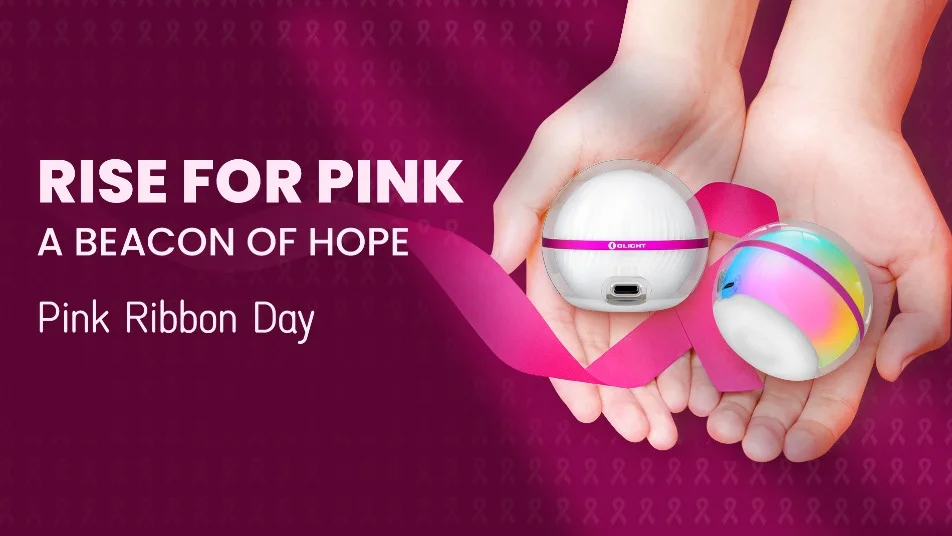
The Olight Sphere Ambient Light ($17.99, regular price, September 2026) solves the "I want a mood light without an account or a hub" problem. It offers 7 options by button and up to 20 in the app, runs on a built-in battery with USB-C charging on the Sphere C, and is rated IP56. Its limit is reach: control stays within Bluetooth range unless you add a gateway, and at 75 lumens it will not light a room for reading.
The Olight Aurevo Smart Bulb ($9.99, regular price, September 2026) is the choice when you want voice control and a lamp that responds from anywhere. Olight describes it as "No hub. No fuss. Connect directly to your Wi-Fi," with 800 lumens and 16 million RGB colors. Its limits: it needs your Wi-Fi and an account, it goes dark in an outage, and it is not for bathrooms. At $9.99 for 800 lumens, it delivers about 80 lumens per dollar, against about 4.2 for the 75-lumen Sphere.
The Olight Ostrip 2 ($45.99, regular price, September 2026) suits TV walls and shelves where you want segment effects and a physical controller. It offers three control options: the Olight app, Alexa and three built-in buttons. The strip is IP65, but Olight notes the controller is not included in that rating, and the manual says to keep the controller dry. Choose it over the Sphere when the light has to cover a line rather than a spot.
The Olight Ostrip LED strip light ($12.99, regular price, September 2026) is the budget option for a kid's room or a desk: 16.4 ft of strip, 150 lumens, 66 preset scenes and control "all within a 25m range." It runs from 5V/1A USB power. Its IP24 rating is lower than the Ostrip 2's, so keep it indoors and away from spray.
This table compares the four lights on the points that decide which one fits your room.
| Model | Connection | Power | Output | Water rating | Physical control | Price (regular, September 2026) |
|---|---|---|---|---|---|---|
| Sphere Ambient Light (Sphere C) | Bluetooth, gateway for remote | Built-in 3.7V 700mAh battery | 75 lumens white | IP56 | Button on the body | $17.99 |
| Aurevo Smart Bulb | Wi-Fi, Alexa | E26 socket, 8W | 800 lumens | Not for damp places | Wall switch | $9.99 |
| Ostrip 2 | Wi-Fi (2.4 GHz), Alexa | Plug-in 24V adapter (in the box) | RGB plus warm and cool white | IP65 (strip only) | Three controller buttons | $45.99 |
| Ostrip | Phone-direct, 25 m range | 5V/1A USB | 150 lumens | IP24 | Controller button | $12.99 |
For a closer look at pairing, scenes and group control in the app itself, read Olight's overview of Olight app smart control.
Is There an App That Can Control All Smart Lights?
No single app controls every smart light. Each brand's lights use that brand's app, and cross-brand control runs through a platform such as Amazon Alexa, Apple Home or Google Home, only for devices that support it. The Matter standard aims to close that gap: its backers say devices from multiple brands work natively together.
The Connectivity Standards Alliance, which runs the Matter smart home standard, says Matter makes it easier to build devices compatible with Amazon's Alexa, Apple's Siri, Google's Assistant and others, and that it runs on Wi-Fi and Thread network layers and uses Bluetooth Low Energy for commissioning. A light has to be built for Matter to take part.
For Olight lights, the honest answer is two apps at most. Olight's product pages list Alexa voice control for the Aurevo and Ostrip 2, and the Olight app for all four; they don't list Matter support. If you already run a whole-home system, put the Aurevo and Ostrip 2 in Alexa for voice and routines, and keep the Olight app for scenes, segment effects and the Sphere.
Is There an App I Can Use to Control My LED Lights?
Only if the lights have a radio built in. Check the box, the controller or the manual for Bluetooth or Wi-Fi and the name of the app the maker supports, then use that app. Plain LED bulbs and strips without a wireless controller cannot be reached by any app; one workaround is a smart plug that switches their power on and off.
Four quick checks tell you what you have:
- Look for a QR code or an app name in the manual. Olight's manuals print QR codes for the Olight app on the App Store and Google Play.
- Look at the controller. A strip with a small box between the power adapter and the lights usually holds the radio; a strip that plugs straight into USB with only a switch does not.
- Find the pairing gesture in the manual. If the manual describes a pairing mode, the light has an app.
- Check the Wi-Fi band. If the manual says 2.4 GHz only, as the Ostrip 2 manual does, your phone needs to be on a 2.4 GHz network during setup.
Generic "LED remote" apps work only with the controllers they were built for, so start with the maker's app before trying anything else.
Where App Control Annoys, and What to Check Before You Buy
App lights annoy when the app becomes the only way to use them: the light sleeps and won't answer, a guest can't find a switch, or a router hiccup leaves a lamp stuck on. Each of those has a fix you can check before buying. Run through the list below and an app controlled light will feel like a normal light with extras.
- Pick the connection by where you'll be. Same room only: Bluetooth. Voice or away-from-home control: Wi-Fi.
- Confirm a physical control. A body button, controller buttons or a wall switch should turn the light on without a phone.
- Read the pairing gesture before you start. Know the press count or switch rhythm and the 3-minute window.
- Check the Wi-Fi band. The Ostrip 2, for example, sets up on 2.4 GHz only; put your phone on that band and within 1 meter if the manual asks.
- Decide on the account. If you don't need remote control, choose a light that works without registration, and turn off remote features you won't use.
- Set one schedule on day one. A lamp that turns on at dusk earns more goodwill than 20 color scenes.
- Keep flashlights for outages. Olight's smart lights are not emergency lighting; a battery light by each bed is.
FAQ
Changelog
- September 23, 2026: First published. Olight specs and prices reflect Olight's US product pages and user manuals as of September 2026.